
An organization can have multiple projects within which you can create separate campaigns for your needs. For example, you can have different projects for every product or service you promote. And under every such project, you might have campaigns for different seasonal activities.
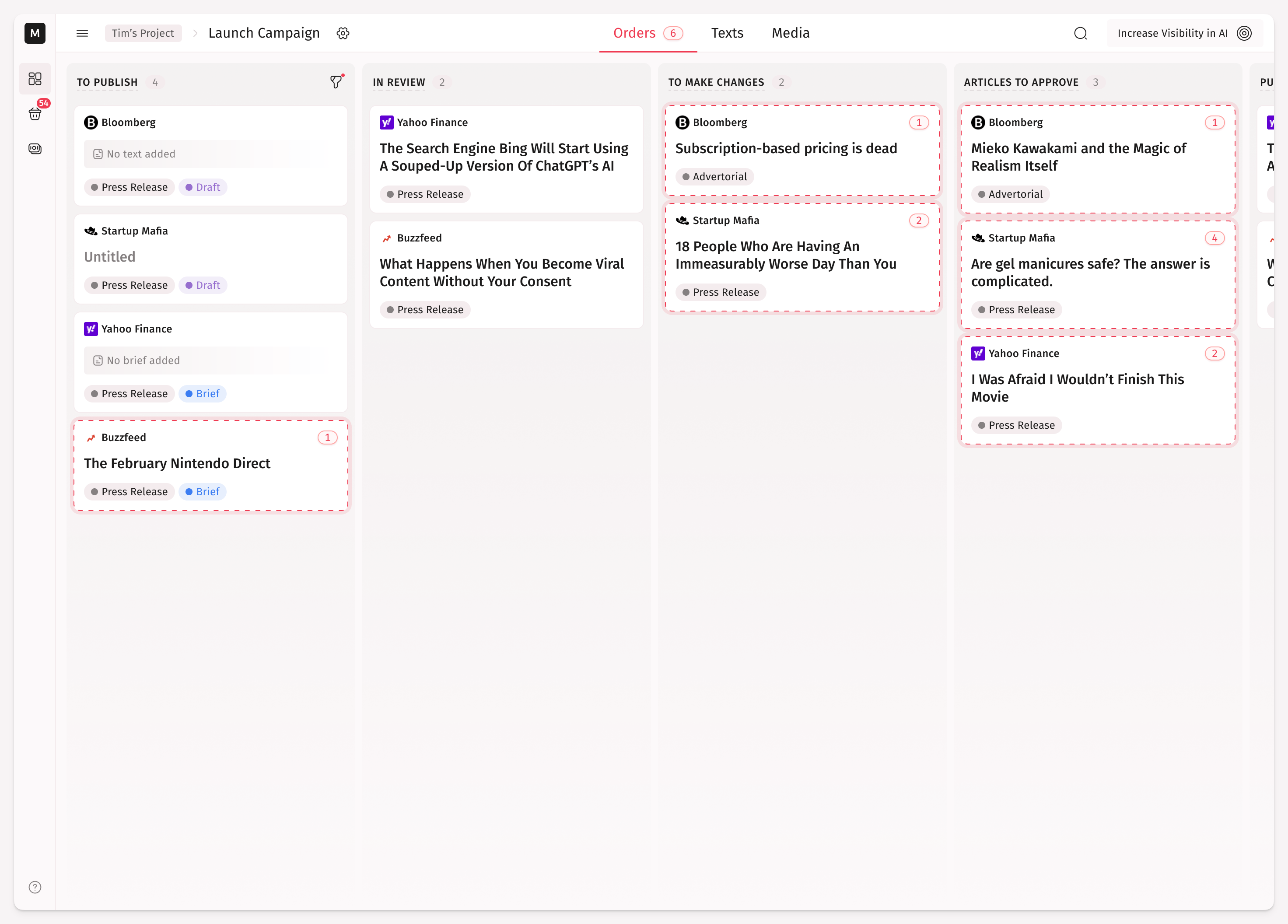
Campaign Board
All placement orders are stored within campaigns in five columns:
To Publish
All booked placements which weren’t used yet can be found hereOn Review
When you send content for placement to the media for a review, this placement moves in this columnTo Make Changes
When the media has reviewed your content, they can ask for changes if necessary. In this case, you’ll find such placements in this columnArticles to Approve
It’s a final step when you must approve that the media has published your content properly.Published
After your approval, the article is marked as published and stays here.
Placements move from one column to another automatically, and no need to drag and drop them.
How to Create a Campaign
To create a campaign, go to a project page and find the campaigns table. In its header, you can find the ⊕ button. Click it, and you’ll see the familiar set of questions that will lead you through the campaign setup process. At the end, click the Create Campaign button to finish. In a Full Marketplace campaign, the first form ends with Next, and Create Campaign is on the goal step that follows. See "Campaign modes" below.
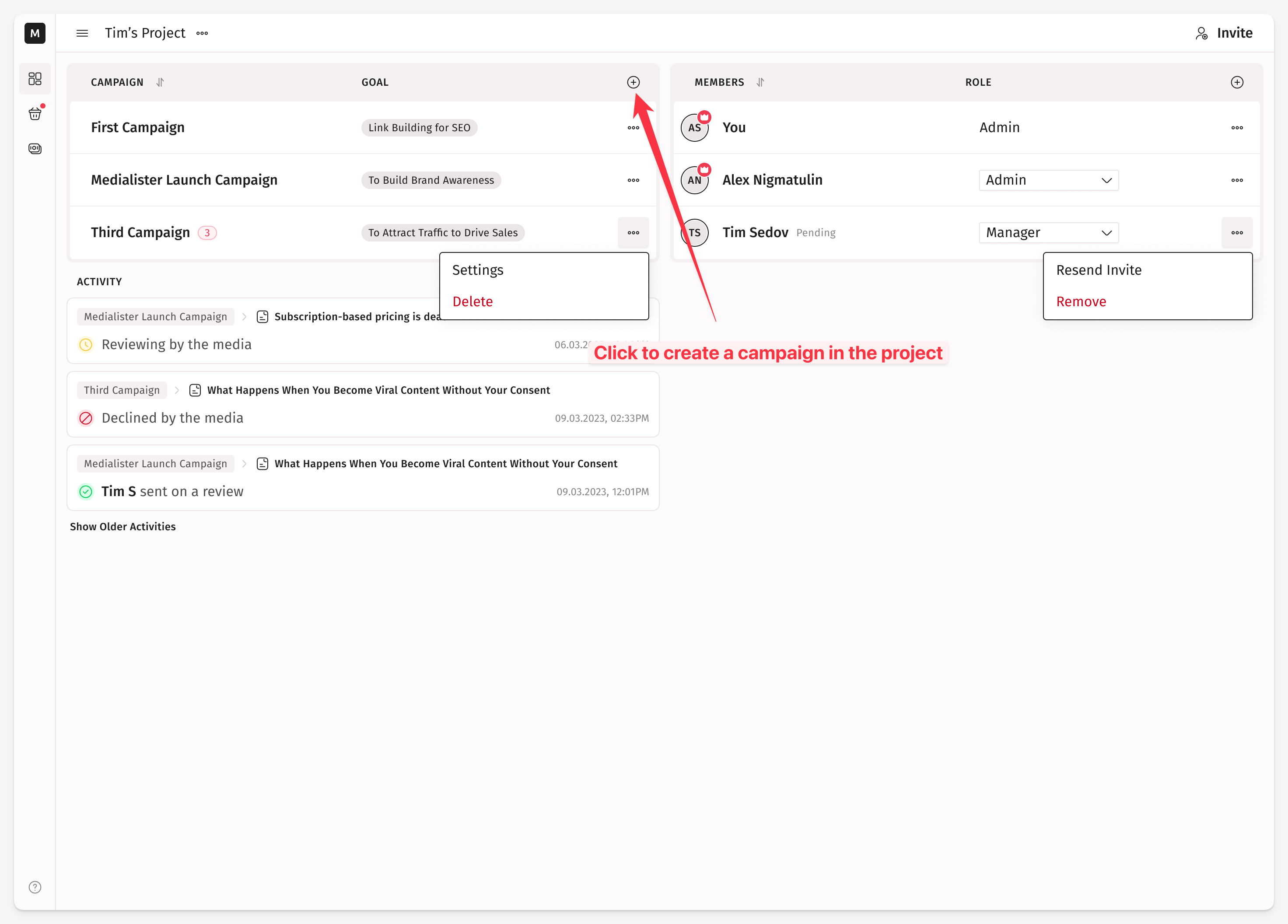
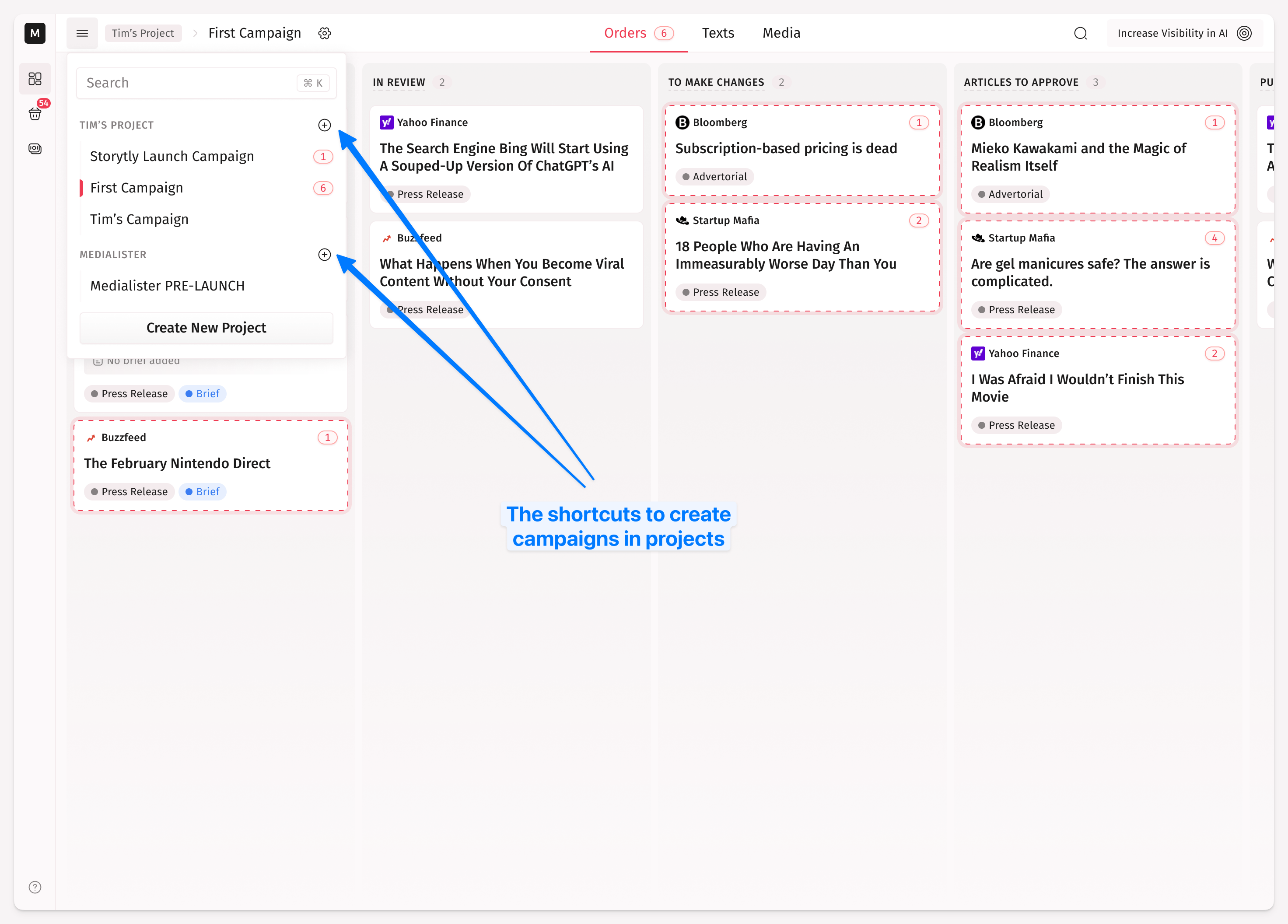
You can also create a campaign within any of your projects from the dashboard menu by clicking the ⊕ button. In that case, a new campaign will be created within the project you've chosen.
How to Edit a Campaign
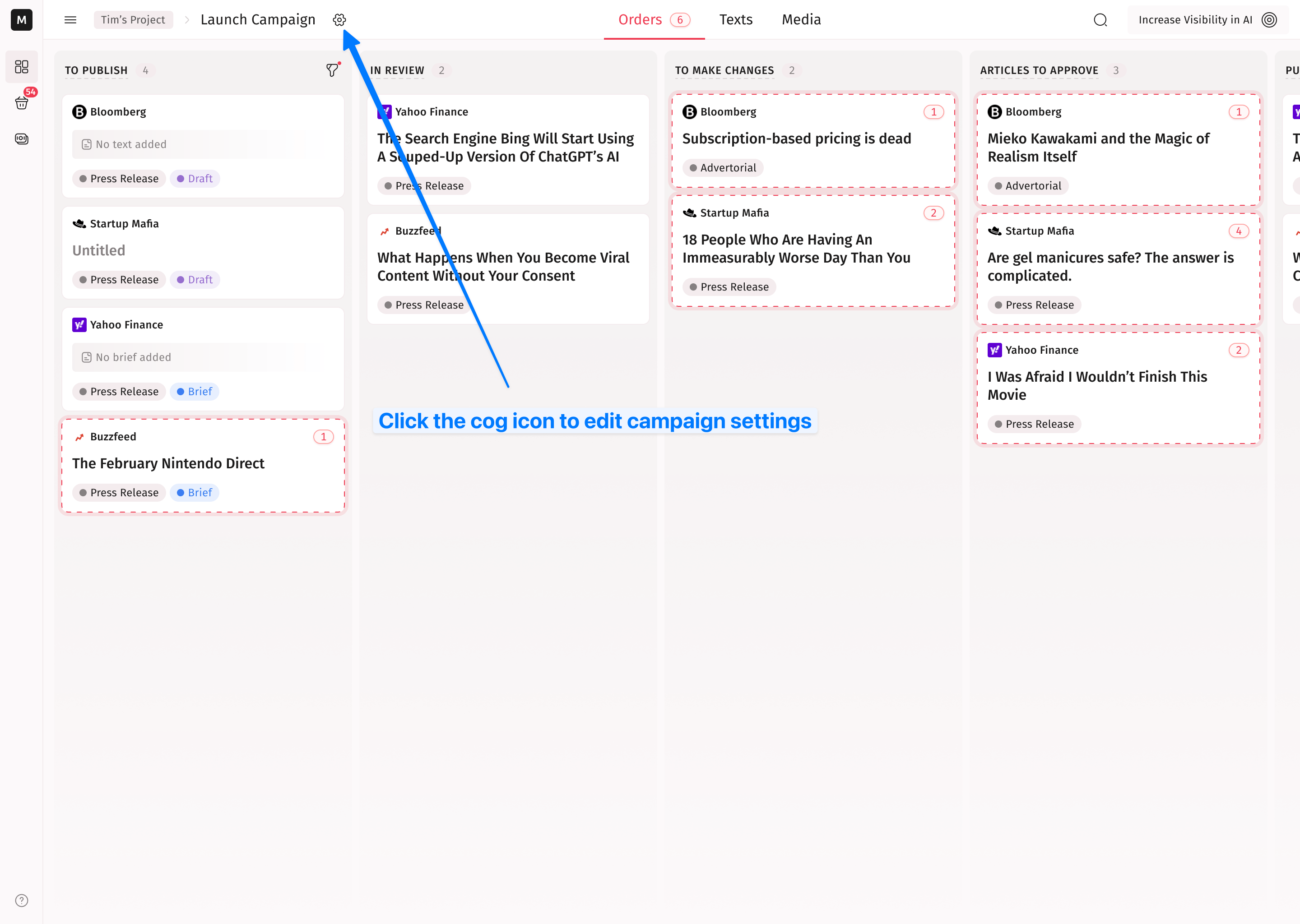
To edit a campaign, go to its campaign page and click the cog button. You’ll see all the available settings for this campaign, which will be changed after you click the Save button at the very bottom. To cancel any changes, click Cancel at the top of the editing page.
How to Delete a Campaign
Bear in mind that you can’t delete a campaign if it’s not empty. A campaign is considered as not empty if you or anyone else has started to work on a placement within this campaign.
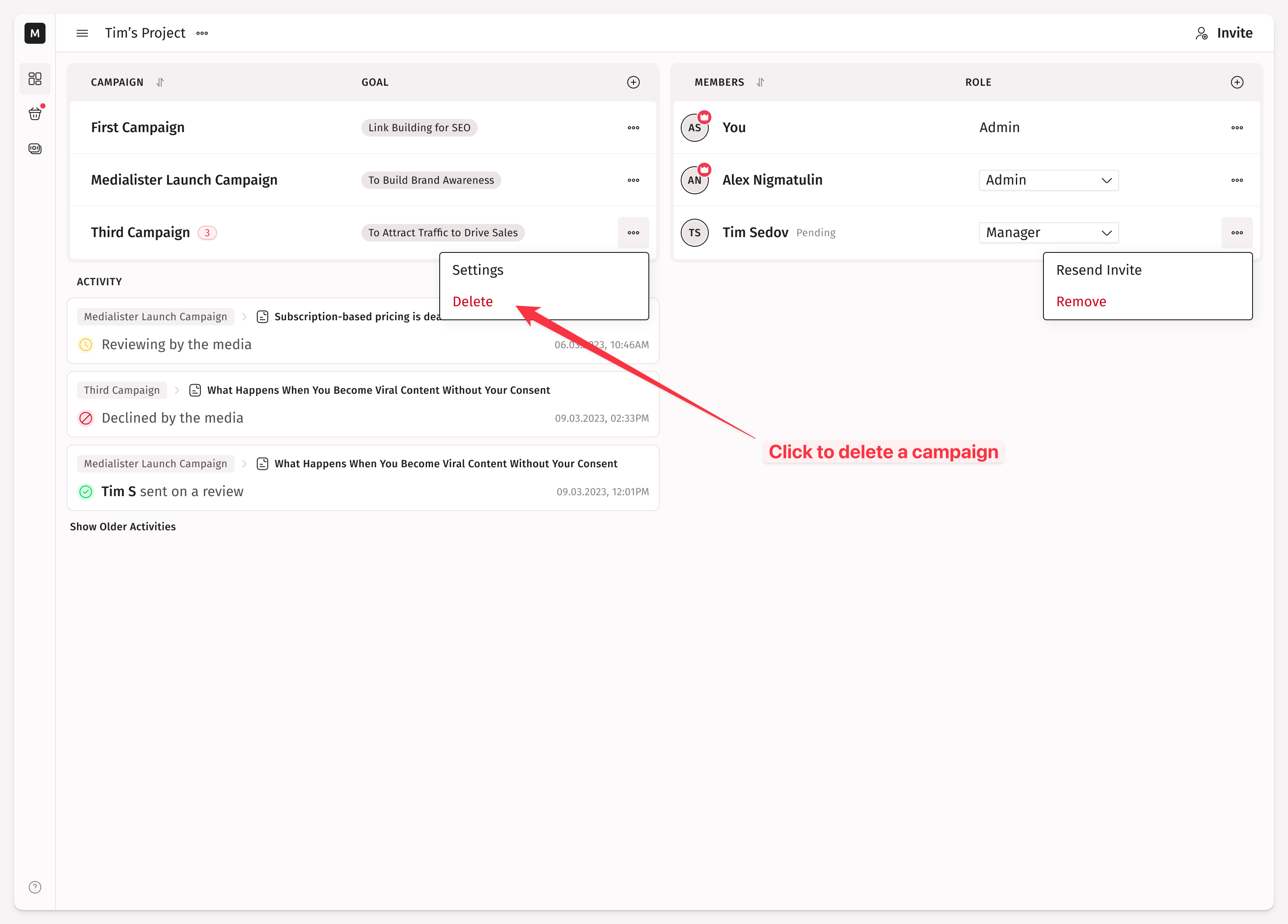
If you still want to delete a campaign, make sure you move all the linked placement orders to another campaign. You can do it by opening a placement order and clicking on the Move to… button. After doing so, go to the project and click the three-dot button near a campaign you want to delete. Click the Delete option and confirm the action.
Who Can Access Campaigns
All the campaigns within one project are available for everyone who is invited to this project, no matter their role. The role affects only the actions a member can do with campaigns and the placements inside.
Campaign modes
Every campaign has one of two modes. The mode decides which path the campaign shows you. A small icon for the mode appears next to the campaign name in the campaigns table, in the dashboard menu and in the breadcrumbs. Campaigns without a mode work as Full Marketplace.
Domain-Based Insights | Full Marketplace | |
|---|---|---|
What it is | Offers picked for your keywords | Search and filter the catalog yourself |
First tab in the campaign header |
|
|
| Not shown | Shown |
| Shown | Not shown |
Goal button in the campaign header | Not shown | Shown |
Goal column in the campaigns table | Empty | Shows the goal |
In a Domain-Based Insights campaign, buttons that used to say "Go to Marketplace", like the ones in the cart and on an empty campaign, say Go to Insights and open Insights. The back link on an offer page also returns you to Insights.
A campaign setup form shows the available modes with a short description of each. You can change the mode of an existing campaign on its edit page. See Insights for how the Insights path works.